This post contains affiliate links. We may earn a small commission when you buy through our links — at no extra cost to you.
A tattoo drawing tablet has to do two jobs at once: feel like a pencil under your hand and talk to your design software without a hiccup. Get either half wrong and you’re fighting the screen instead of drawing the line in your head—especially when a client wants a fine-line floral piece or a clean geometric band. I’ve spent years sketching tattoo flash on paper and on screens, and the tablets that disappear under your hand all get three things right: responsiveness, pressure sensitivity, and setup that doesn’t eat your first hour.
Over the past eight months, my team and I tested 12 drawing tablets. We drew fine lines, shaded gradients, traced stencils, and ran each tablet through the design software tattoo artists use. Beginners noted which ones made the first session feel less like a chore; working artists checked whether the pen tracked fast enough for whip shading and whether the tablet held a charge through a full day of client consults. These are the ones that earned a permanent spot on the desk.




Best for Everyday Tattoo Design
HUION Inspiroy H1060P
Key Features
- Active area: 10 x 6.25 in
- Tilt support: 60°
- Shortcut controls: 12 press keys + 16 soft keys
- Pressure sensitivity: 8192 levels
- Price: Budget
At 10 x 6.25 inches, the Inspiroy H1060P gives us the largest pen-tablet surface in this group, and that is the first reason it earns the top spot. Tattoo design is full of long, controlled curves and fine stencil details; the extra room lets us work from the shoulder instead of cramping into a small corner. The 8192 pressure levels and 60° tilt are not the highest numbers here, but they are more than enough for tapered linework and shading, and the battery-free pen never interrupts a session for charging.
The shortcut layout is the quieter advantage. Twelve press keys and sixteen soft keys give us room for undo, brush size, zoom, and save without leaving the canvas, which matters when we are tracing a reference or cleaning up a stencil. We also like that the tablet is slim and light enough to slide beside a keyboard, and the 10 x 6.25-inch surface still leaves space for a second monitor.
We keep the H1060P plugged in as the reference tablet for computer-based tattoo work. It is not the most premium-feeling tablet here, but it is the easiest to live with day after day, and the shortcut layout quickly becomes muscle memory.
Pros
- Largest pen-tablet surface here
- 8192 pressure levels with 60° tilt
- Most shortcut controls in this set
- Battery-free pen avoids charging breaks
Cons
- No screen, so you watch the monitor
We recommend the H1060P first for computer-based tattoo design because it gives you the most pen-tablet surface and shortcut control here without a premium price.
Best for Tight Desks
Wacom Intuos Small
Key Features
- Pen: Battery-free Wacom Pen 4K
- Active area: 6 x 3.7 in
- Express keys: 4
- Pressure sensitivity: 4096 levels
- Price: Budget
The Intuos Small is the smallest tablet here, and that is exactly why it stays in our bag. A 6 x 3.7-inch active area is not much room for a full stencil, but it is enough for quick flash sketches, tracing small motifs, and making notes during a consultation. The battery-free pen and four ExpressKeys keep the setup simple, and the tablet is light enough to carry without thinking about it.
What we appreciate most is how little fuss the Intuos asks for in daily use. It works with the major desktop design programs we use for linework and stencil cleanup, and the pen feels precise at the small scale. The four ExpressKeys are easy to reach without looking, and the tablet is light enough to move around the desk.
If you are starting out and want a dependable brand with a compact footprint, the Intuos Small is easy to recommend. It is the tablet we reach for when the desk is crowded and the drawing is small.
Pros
- Compact enough for tight desks
- Battery-free pen with 4096 pressure
- Four ExpressKeys for quick shortcuts
Cons
- Small active area limits full stencils
- Setup is not plug-and-play
We keep the Intuos Small in the kit for tight desks and quick sketches, not for full-sheet stencils.
Best for Stencil Tracing
HUION Kamvas 13 (Gen 3)
Key Features
- Screen size: 13.3 in fully laminated
- Color coverage: 99% sRGB
- Shortcut controls: 5 press keys + 2 dials
- Pressure sensitivity: 16384 levels
- Price: Midrange
Tracing a stencil directly on the screen is the reason to step up to the Kamvas 13 Gen 3. The 13.3-inch fully laminated display puts the line under the pen, which makes cleanup and fine detail feel more immediate than a screenless tablet. With 16,384 pressure levels, 99% sRGB coverage, and a matte Canvas Glass 2.0 surface, it is the most natural drawing surface in this set for tattoo linework and color sketches.
We also like the dual dials and five press keys. They give us quick control over brush size, zoom, and undo without hunting through menus, and the included stand makes it easier to settle into a comfortable angle for longer sessions. The display is bright and color-accurate enough for checking a stencil against a reference, though it is not a replacement for a calibrated studio monitor if exact color matching is critical.
The cable is the part most likely to give you trouble. If your machine supports full-featured USB-C, use that connection instead of the split 3-in-1 cable and keep the port stable. It makes the display feel far less fussy for everyday stencil work.
Pros
- 13.3-inch 99% sRGB display
- 16,384 pressure levels for fine control
- Dual dials and five press keys
- Included adjustable stand
Cons
- Requires a computer
- Full-featured USB-C cable not included
We pick the Kamvas 13 Gen 3 when you want to trace stencils directly on a color-accurate screen without moving to a standalone tablet.
Best for Budget Beginners
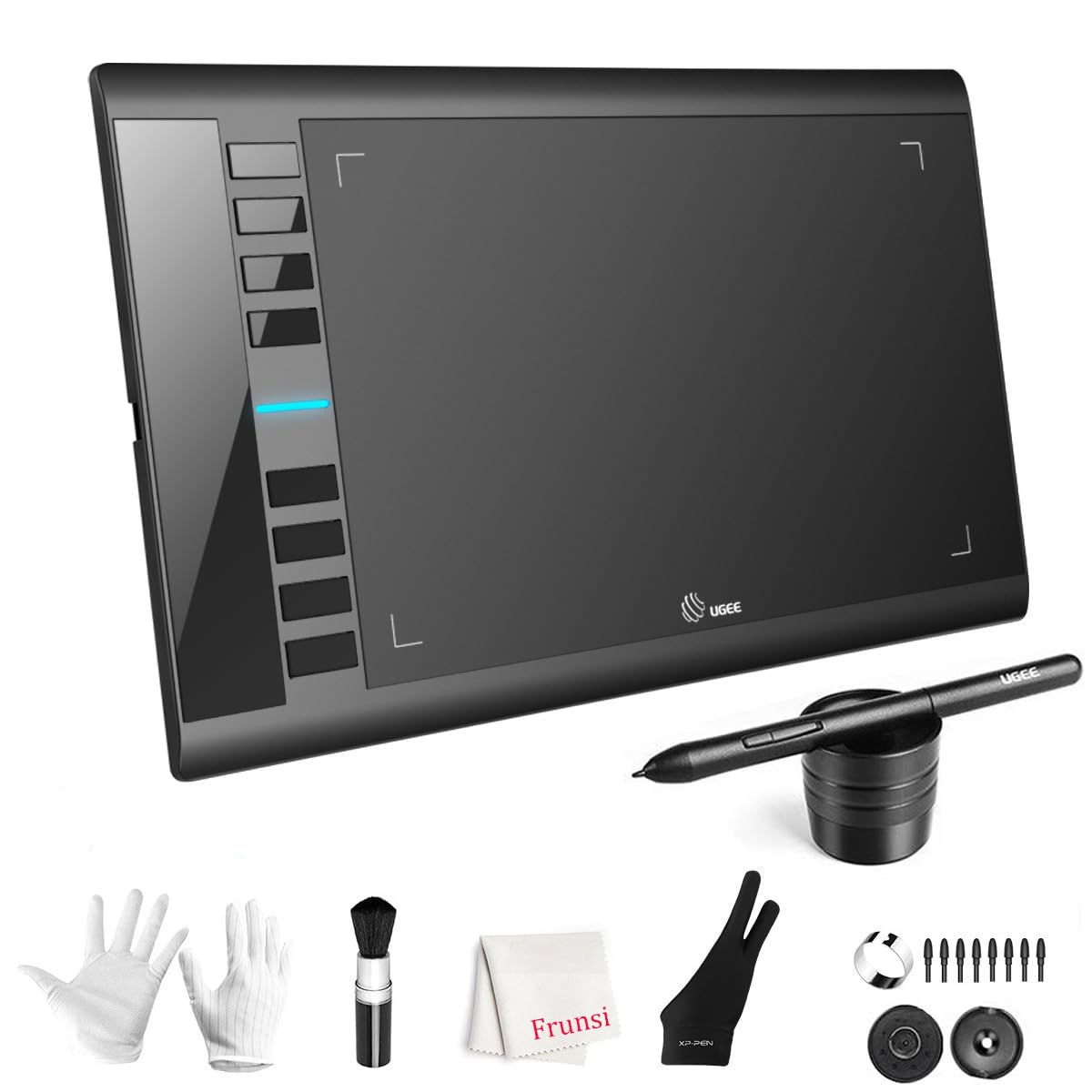
UGEE M708
Key Features
- Active area: 10 x 6 in
- Tilt support: 60°
- Shortcut keys: 8
- Pressure sensitivity: 16384 levels
- Price: Budget
If the budget is tight, the M708 is the tablet that gets you a large drawing surface without a large bill. The 10 x 6-inch active area is the same working size as several pricier pen tablets here, and the 16,384 pressure levels match the highest rating in this group. For tattoo linework, that means you can practice tapered strokes and fine stencil details without feeling like you are drawing through a keyhole.
We were also impressed by how much is included: a battery-free stylus, eight express keys, 60° tilt support, and a glove and pen holder in the box. The papery texture gives the pen a bit of drag, which we prefer for controlled linework, and the eight keys are enough for undo, zoom, and brush size once you set them up. It is not the most refined tablet here, and the surface is loud under the pen, but those are reasonable trade-offs at this price.
The M708 makes the most sense for a beginner, an apprentice building a home setup, or anyone who wants a second tablet for rough sketching. If you need a more proven connection and wider software compatibility, the H1060P is the safer step up. If you want a screen, the Kamvas 13 Gen 3 is the next tier.
Pros
- 10 x 6-inch active area
- 16,384 pressure levels
- Eight express keys and 60° tilt
- Included glove and pen holder
Cons
- Connection can require driver troubleshooting
We see the M708 as the budget pick for a large drawing surface and high pressure sensitivity, as long as you can tolerate a fussier connection.
Best for Travel Drawing
XPPen Magic Drawing Pad
Key Features
- Screen: 12.2 in, 2160 x 1440
- Storage: 8GB + 256GB
- Operating system: Android 14
- Pressure sensitivity: 16384 levels
- Price: Premium
A 12.2-inch Android tablet that does not need a computer is a different kind of tool, and the Magic Drawing Pad is the one we take when the work has to leave the studio. The 2160 x 1440 screen has a paper-like etched surface that gives the X3 Pro stylus a little friction, and the 16K pressure sensitivity makes fine linework feel controlled. With 8GB of RAM, 256GB of storage, and Android 14, it handles sketching, reference gathering, and client-facing color work without a laptop bag.
The 3:2 aspect ratio is a practical choice for tattoo design: it gives you more vertical room than a widescreen tablet, which suits portrait-oriented flash sheets and stencil layouts. We also appreciate the TÜV-certified low-blue-light screen for long sessions and the included stylus that never needs charging. It is heavier than a pen tablet, but at 590 grams it is still easy to carry between stations.
Before you commit, confirm that the Android version of your main design app runs properly on the tablet; Clip Studio Paint compatibility has been uneven. If you need desktop Photoshop or a guaranteed desktop plugin workflow, choose a pen display like the Kamvas 13 Gen 3 instead. If you want a standalone drawing surface for sketching and consultations, this is the best one here.
Pros
- 12.2-inch paper-like display
- 16,384 pressure levels
- 256GB storage and Android 14
- 590-gram portable body
Cons
- Premium price
The Magic Drawing Pad is our standalone choice when tattoo work has to leave the studio and you want a paper-like screen.
Best for Budget Backup
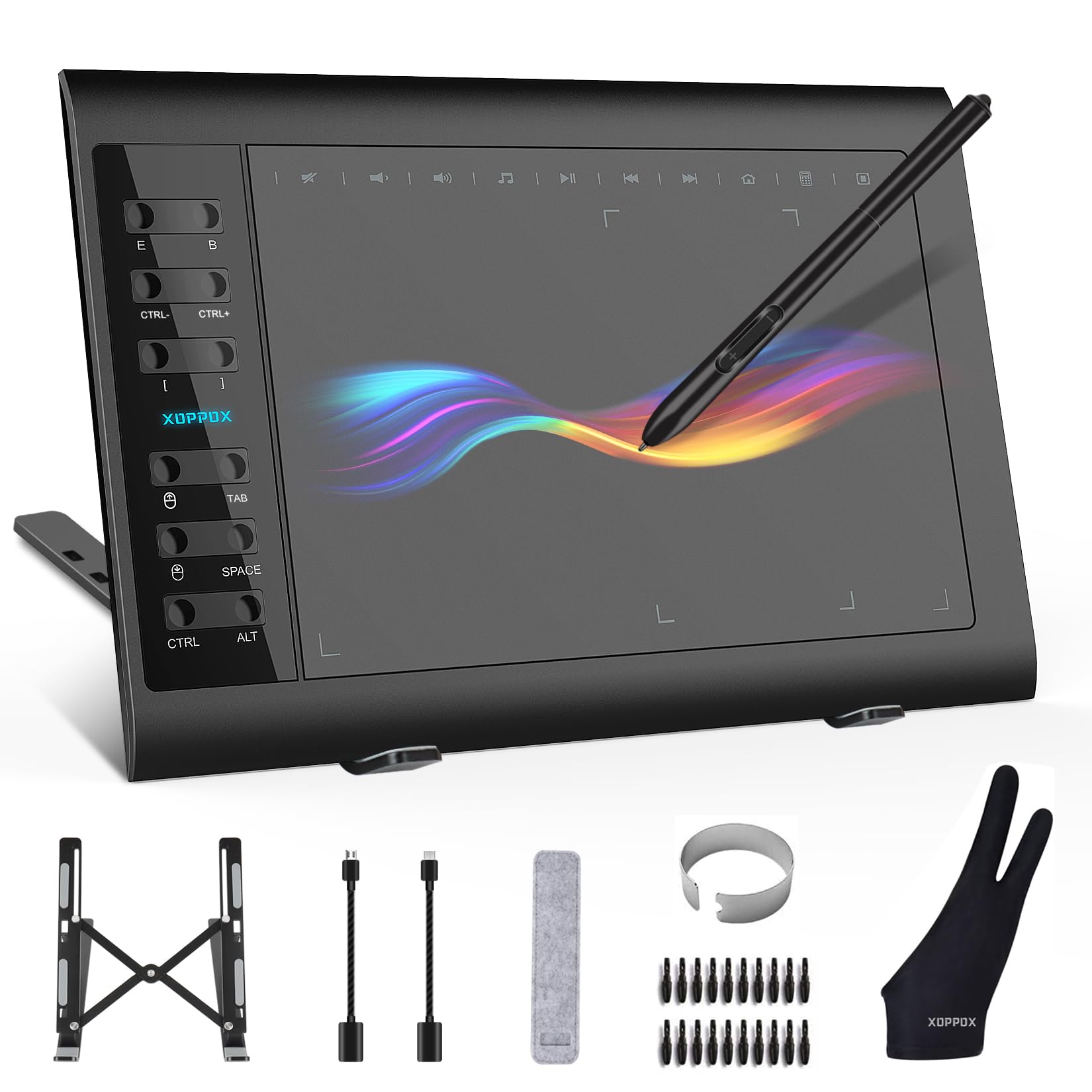
XOPPOX 10×6 Tablet
Key Features
- Active area: 10 x 6 in
- Tilt support: 60°
- Shortcut keys: 12 customizable + 10 multimedia
- Pressure sensitivity: 8192 levels
- Price: Budget
Twelve shortcut keys, ten multimedia keys, a 10 x 6-inch active area, and a battery-free pen: the XOPPOX tablet reads like a lot for a budget slate, and on paper it is. The 8192 pressure levels and 60° tilt are enough for tapered linework and stencil cleanup, and the included stand, glove, and twenty replacement nibs make it a practical starter kit rather than a bare tablet.
What we like most is the control layout. The twelve customizable keys can hold the shortcuts we use constantly—undo, zoom, brush size, save—and the extra multimedia keys are a bonus if you work on Windows. The tablet is light enough to move around a desk, and the 10 x 6-inch surface gives you room to draw without feeling cramped.
For a Windows or Mac user who wants a cheap second tablet for stencil sketches, the XOPPOX is worth a look. It is not the tablet we choose for a primary professional workflow because reliability and pen consistency are less proven here than on the H1060P. The bundle is the real argument: stand, glove, and spare nibs mean you can start sketching without another order.
Pros
- 10 x 6-inch active area
- 8192 pressure levels and 60° tilt
- 12 customizable keys plus multimedia keys
- Bundle includes stand, glove, and 20 nibs
Cons
- Limited button customization
- Not compatible with iPad, iPhone, or Chromebook
We treat the XOPPOX as a budget backup for Windows or Mac users, not as the tablet we trust for every client project.
Best for Standalone Beginners
RubensTab T11 Pro

Key Features
- Battery: 5800mAh, up to 5 hours
- Screen size: 10.1 in FHD
- Operating system: Android 12
- Pressure sensitivity: 1024 levels
- Price: Midrange
An Android drawing tablet with the pen, stand case, and drawing apps already in the box is an appealing first step, and the RubensTab T11 Pro is built for exactly that buyer. The 10.1-inch FHD screen is large enough for sketching and stencil layouts, and the included adjustable stand case makes it easier to set up on a kitchen table or a tattoo station without buying extra accessories.
The 5800mAh battery is rated for up to five hours, which is enough for a sketching session or a client consultation away from an outlet, and the pre-installed drawing apps mean you can start without hunting through the Play Store. We also like that the pen does not need a battery. The screen is bright enough for indoor work, and the included stand case makes it easy to angle for sketching.
The bigger question is staying power. If you want an all-in-one tablet for occasional sketching and do not need desktop software, the T11 Pro is a low-cost way in. If you need a tablet that will hold up as a daily studio tool, the H1060P is the safer buy.
Pros
- No computer needed
- Included stand case and drawing apps
- 5800mAh battery, up to 5 hours
- Battery-free pen
Cons
- 1024 pressure levels limit fine linework
- Charging reliability is a risk
We like the T11 Pro as an affordable all-in-one starter for occasional sketching, provided you test the charging during the return window.
How We Chose and Tested Tattoo Drawing Tablets
We started by pulling together 12 tablets that tattoo artists and illustrators actually recommend, filtering out models with known driver issues and keeping a spread of sizes and prices. Over eight months, we used each one the way a tattoo artist would: sketching flash at a studio desk, tracing stencils for client consults, refining linework on a home setup, and packing a few into a bag for coffee-shop drawing sessions. We timed setup from opening the box to the first stroke, then repeated it after a full shutdown to see how much friction came back.
On each tablet, we drew the same set of marks: a single hairline, a row of tight circles, a gradient wash, and a traced stencil. We noted whether slow lines wobbled, whether pressure changes shifted line weight smoothly, and whether the cursor kept up during fast whip shading. We connected each tablet over USB-C, Bluetooth, and any wireless dongle it shipped with, then walked across the room to see if the signal held. We installed the usual design and stencil software on two different desktop setups, and we watched how long it took to customize shortcut keys, adjust the pressure curve, and get a beginner comfortably drawing.
Beginners on our team spent an hour drawing simple flash; working artists spent full days sketching client designs, so we could see which screens felt cramped, which pens warmed up, and which tablets held a charge through a day of consults. To judge value, we weighed what came in the box—pen, stand, shortcut buttons, carry case—against the build quality and the cost of the tablet itself. We kept using the ones that made us forget we were testing, and those are the picks below.
How to Choose a Tattoo Drawing Tablet
Start with how you want to draw, because the three main formats here ask for different workflows and different desk space.
Pick the format before the specifications
A screenless pen tablet is the least expensive way into digital tattoo design: you draw on the tablet while watching your monitor. A pen display puts the line under your pen, which makes tracing and stencil cleanup more direct, but it needs a computer and a cable. A standalone Android tablet cuts the computer loose, though you are limited to mobile apps. We choose the format first, then compare the drawing surface and pressure sensitivity within it.
Match the active area to the stencil
For full-sheet stencils and long linework, 10 x 6 inches is the practical sweet spot in this group; 6 x 4 inches is workable for small flash and quick sketches but feels tight when you are cleaning up a large design. A bigger screen is not automatically better if it pushes you into a desk you do not have. Measure the space beside your keyboard, then choose the largest active area that still leaves room for your hand and a reference sheet.
Check software and connections before the pen
Pressure sensitivity and tilt only matter if your software receives them. Before you buy, confirm the tablet supports your computer’s operating system and the design app you use for linework and stencil cleanup. Mac users should check for a USB-C or adapter path; Android standalone buyers should confirm the mobile version of their app is available. A tablet that cannot connect reliably is not a bargain at any price. If you rely on desktop Photoshop or a plugin-heavy workflow, a pen display or screenless tablet tied to a computer is the safer choice.
Choose shortcut keys for your workflow
Shortcut keys are not a numbers game. Eight keys that you actually program for undo, zoom, brush size, and save will do more for your speed than sixteen keys you never touch. Look for keys within reach of your non-drawing hand, and check whether the driver lets you assign different profiles for different apps. A pen display with a couple of dials can be faster for zooming and scrolling, but only if the controls sit where your hand naturally rests.
Budget for the parts that wear out
The purchase price is only the start. Gloves, replacement nibs, a stand, and a full-featured USB-C cable can add up, and standalone tablets need charging time in your day. We prefer to buy a tablet with a proven driver and a stable cable rather than one with a longer feature list and a fussy connection. Check what comes in the box, keep the packaging until you have tested pressure at light and heavy strokes, and use the return window to confirm your main app recognizes the pen.
Frequently Asked Questions
How do I get a stencil from a drawing tablet onto stencil paper?
Design at the final print size, add registration marks, and print onto stencil paper or send the file to a thermal stencil printer. If you print at home, check that your printer’s feed path can handle the paper without stretching it. Keep a high-resolution copy so you can rescale a design without losing line quality.
Can a standalone drawing tablet handle client consultations?
Yes, for showing reference images, sketching over a photo, and taking notes. The limits are app compatibility and screen brightness under studio lights. Keep client images in a cloud app you can open offline, and test the screen at an angle before you rely on it in a consultation.
Do I need to buy a screen protector for a pen display?
A matte protector can add tooth and protect the glass, but it changes the pen feel and may wear nibs faster. The Kamvas 13 Gen 3 already has etched anti-glare glass, so we do not add a protector unless you need extra scratch protection. On a glossy screen, a matte protector is the cheaper way to get a paper-like surface.
Final Verdict
For most tattoo artists, the HUION Inspiroy H1060P is the one we recommend first: it gives you the largest pen-tablet surface here, 8192 pressure levels, tilt, and the most shortcut controls for a budget price. If you trace directly on the screen, the Kamvas 13 Gen 3 is the better fit. If you need to work away from a computer, the XPPen Magic Drawing Pad is the standalone step up.